What Your Customers See
Once you have enabled App Store access for a customer account, their administrators will see the 8x8 App Store directly within the 8x8 Admin Console — no separate login or setup required on their side.
Finding the App Store
Your customer's administrator logs into the 8x8 Admin Console as normal. Under the Setup section on the home page, they will see the 8x8 App Store tile. Clicking it opens the App Store in a new tab.
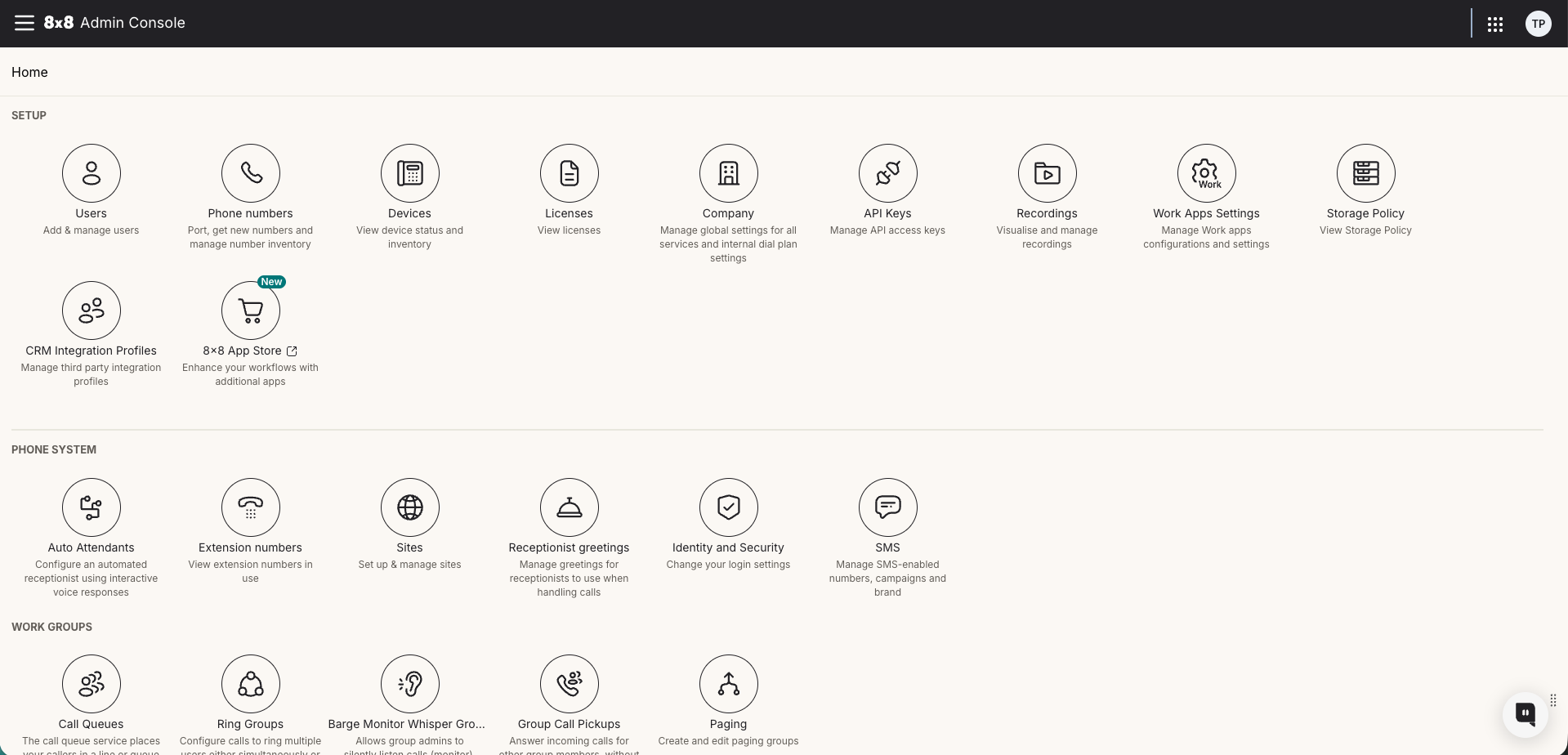
With free apps enabled
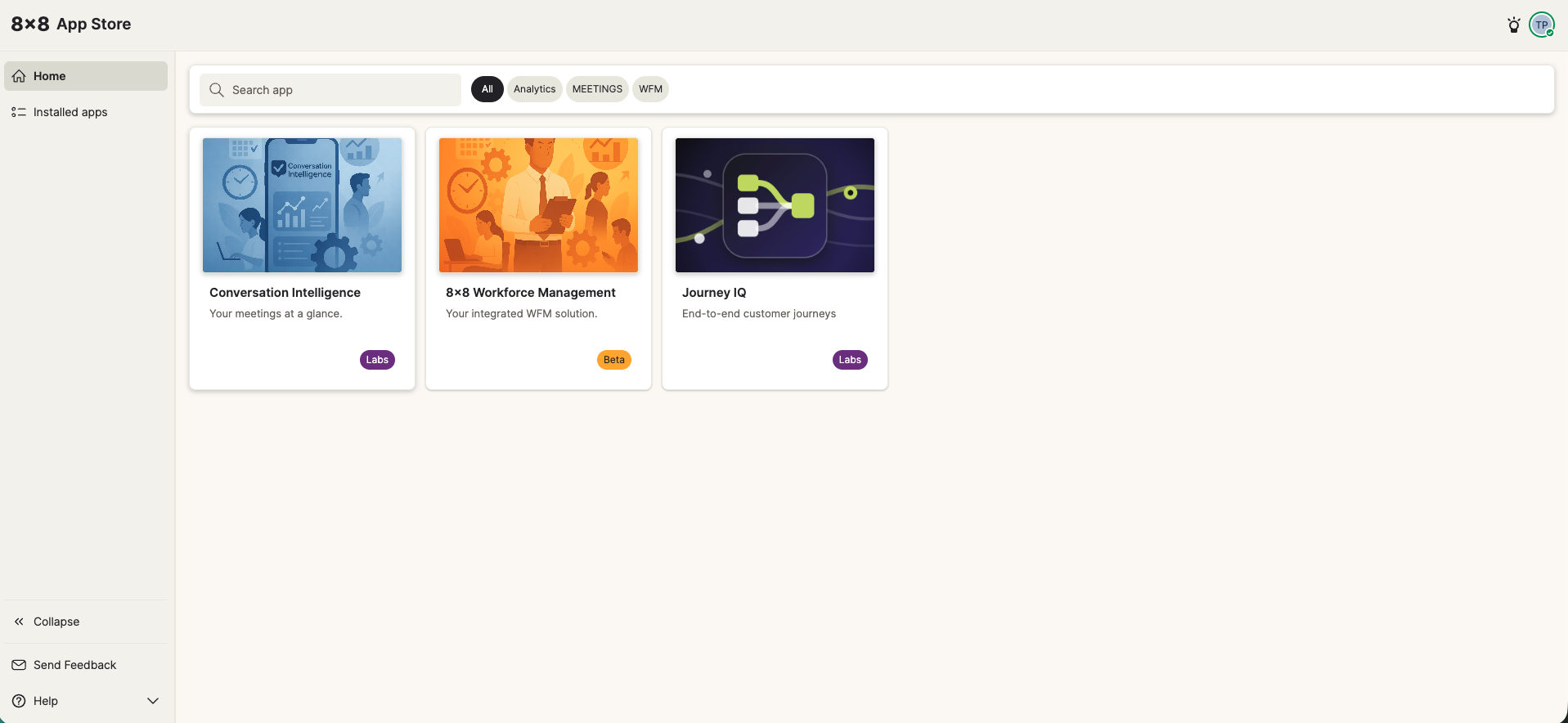
If you have enabled App Store access for the account (without enabling paid apps), the customer's administrator will see only the free apps in your catalog. In the example below, three free apps are available: Conversation Intelligence, 8x8 Workforce Management, and Journey IQ.
With paid apps enabled
If you have also enabled Paid apps for the account, the full catalog becomes visible — including any paid apps. In the example below, AI Studio now appears alongside the free apps.
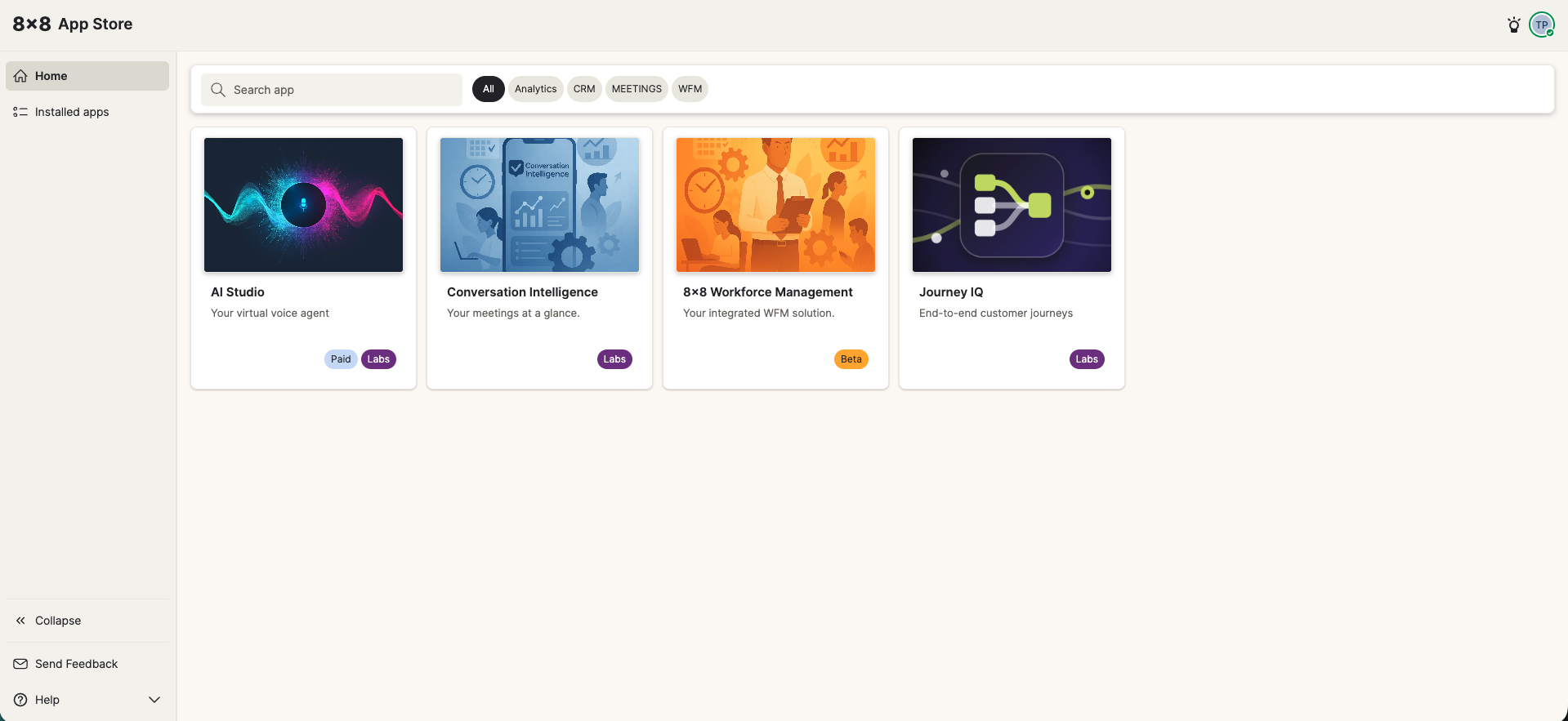
Note: AI Studio is shown here as the current paid app in the catalog. As the 8x8 App Store grows, additional paid apps will appear here automatically for any account that has paid apps enabled.
What the customer controls
Once the App Store is visible, the customer's own administrators can browse, install, and manage apps themselves — within the apps you have made available to them. As the reseller, you remain in control of which apps are in their catalog and whether paid app access is on or off.